Real-Time OCR with PaddleOCR and Pathway
 Olivier Ruas
Real-Time OCR with PaddleOCR and Pathway
Optical Character Recognition (OCR) is a key step in extracting information from documents, whether for data processing or RAG applications. When dealing with real-time data, the ability to perform OCR on the fly becomes essential.
OCR and real-time processing each present their own challenges. This guide shows how PaddleOCR and Pathway simplify real-time OCR. You'll learn how to process local files with OCR and integrate the results into a RAG pipeline.
Why Real-Time OCR Matters
Data processing is often boiled down to simple acronyms like ETL (Extract, Transform, Load) or the medallion architecture. On paper, it sounds straightforward: extract the data, process it, and store the results. But in reality, it's rarely that simple.
The challenge lies in the data itself. It's not static or uniform. It's messy, dynamic, and constantly evolving:
- Diverse formats: Documents can be PDFs, images, slides, or other unstructured formats.
- Volume and velocity: Data is continuously created, updated, or deleted, and its volume and speed vary depending on the source.
In practice, you won't be dealing with neat, static CSV files. You need a solution that can extract not just text, but also the structure of the data. This processing must be done efficiently, in real-time, to keep up with the incoming data updates. That's where real-time OCR with Pathway and PaddleOCR comes in, offering a practical way to handle your data as it arrives.
How PaddleOCR and Pathway Work Together
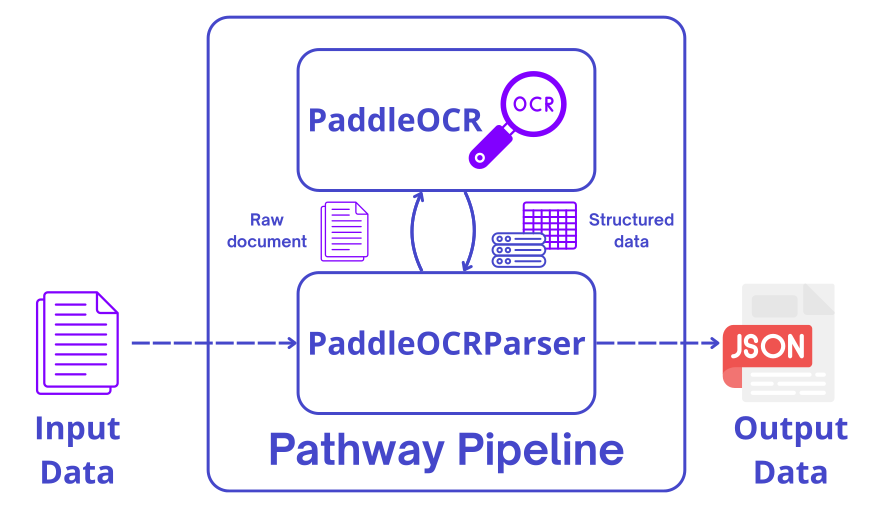
PaddleOCR, developed by Baidu, is a robust OCR system that supports advanced algorithms for data generation, model training, and inference. It converts documents and images into structured formats like JSON or Markdown, and its GPU compatibility ensures high performance which makes it ideal for real-time use.
By integrating PaddleOCR into Pathway pipelines, you can process documents as they arrive, without delays.
Installation and Setup
Before starting, you need to the following:
- Install the Parsing xpack,
pip install "pathway[xpack-llm-docs]" - Install PaddleOCR
Install Pathway's Parsing xpack
PaddleOCR will be called using PaddleOCRParser, available in the xpack-llm-docs xpack:
pip install "pathway[xpack-llm-docs]"
For more details, see the Pathway installation guide.
Install PaddleOCR
PaddleOCR requires paddlepaddle. The installation depends on your hardware.
If you want to run the OCR on CPU, you can install it with the following pip command:
pip install paddlepaddle>=3.2.0
For GPU support, follow the instructions on the official site.
Using PaddleOCR in Pathway
Pathway provides the PaddleOCRParser to parse images, PDFs, and PPTX slides.
from pathway.xpacks.llm.parsers import (
    PaddleOCRParser,
)

parser = PaddleOCRParser()
PaddleOCRParser accepts the following parameters:
pipeline: The Paddle pipeline object you want to use to do the OCR. Currently,PaddleOCRandPPStructureV3pipelines are supported. By default, it uses aPPStructureV3pipeline.concatenate_pages: Whether to concatenate multi-paged documents into a single output. Defaults toFalse.intermediate_image_format: Intermediate image format used when converting PDFs to images. Defaults to"jpg"for speed and memory use.max_image_size: Maximum allowed size of the images in bytes. Default is 15 MB.downsize_horizontal_width: Width to which images are downsized if necessary, defaults to1920.cache_strategy: Defines the caching mechanism. To enable caching, a validpathway.udfs.CacheStrategyshould be provided. Defaults to None.async_mode: The execution mode of the OCR, eitherbatch_asyncorfully_async. Defaults tobatch_async.
For more details, see the PaddleOCRParser API reference.
Example: Simple OCR pipeline
Let's process a local image and extract its text.
Prepare the Data
You need some document to parse. As an example, let's use a screenshot of a shopping list:
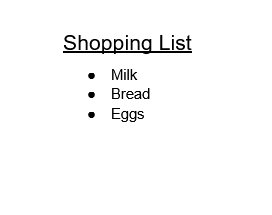
You can download this image with the following command:
wget https://github.com/pathwaycom/pathway/tree/main/examples/images/shopping_list.png
Put it into a ./data/ folder.
Note: We use OCR on such a screenshot for the sake of the example here. It's best to avoid working with screenshot and to work directly with the raw data using APIs and the Python connector when it is possible. Use OCR only when accessing the raw data is impossible, such as in an enterprise documentation when there are only PDFs and images.
Read and Parse the file
Use Pathway's file system connector to read the file in binary format:
files_table = pw.io.fs.read(
    "./data",
    format="binary",
    mode="static",
    object_size_limit=None,
    with_metadata=True,
)
Parse the file with PaddleOCRParser:
parser = PaddleOCRParser(concatenate_pages=True)
parsed_table = files_table.select(parsed_text=parser(pw.this.data)[0][0])
Save the Results
Write the output to a JSON Lines file:
pw.io.jsonlines.write(parsed_table, "./output.jsonl")
Run the Pipeline
Don't forget the pw.run(), and that's it!
Here is the entire pipeline:
import pathway as pw
from pathway.xpacks.llm.parsers import (
    PaddleOCRParser,
)

files_table = pw.io.fs.read(
    "./data",
    format="binary",
    object_size_limit=None,
    with_metadata=True,
)

parser = PaddleOCRParser(concatenate_pages=True)
parsed_table = files_table.select(parsed_text=parser(pw.this.data)[0][0])

pw.io.jsonlines.write(parsed_table, "./output.jsonl")
pw.run()
The output will look like this:
{"parsed_text":[["\n\n# Shopping List \n\nMilk Bread Eggs ",{}]],"diff":1,"time":1770035995376}
You can see that the text is successfully extracted from the shopping list!
Unfortunately, it seems that this list is incomplete, so you update the list, and take a new screenshot:
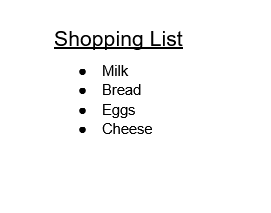
As previously, you can download this image with the following command:
wget https://github.com/pathwaycom/pathway/tree/main/examples/images/shopping_list_2.png
Rename it with the same name as the previous one, and put it in the same ./data/ folder so it replaces the previous version.
Pathway will automatically react to the change, redo the OCR using PaddleOCR and update the output:
{"parsed_text":[["\n\n# Shopping List \n\nMilk Bread Eggs ",{}]],"diff":1,"time":1770036557176}
{"parsed_text":[["\n\n# Shopping List \n\nMilk Bread Eggs ",{}]],"diff":-1,"time":1770036569170}
{"parsed_text":[["\n\n# Shopping List \n\nMilk Bread Eggs Cheese ",{}]],"diff":1,"time":1770036569170}
You can see that the old value was removed (second line, with "diff":-1) and the new value (with the cheese) was added!
Note that for this to work, you need to be in streaming mode (mode="streaming" in the connector definition).
Integrating PaddleOCR into a RAG Pipeline
You can use the PaddleOCRParser directly into our Q&A RAG template.
You simply need to update the app.yaml configuration file and change the parser:
$parser: !pw.xpacks.llm.parsers.PaddleOCRParser
  concatenate_pages: True
And that's it! Your RAG pipeline will now process documents in real-time using PaddleOCR.
For more details, see the RAG template guide.
Conclusion
Documents come in various formats, are often unstructured, and change frequently. To handle this effectively, your data pipeline should adapt to the data's nature, not the other way around.
With PaddleOCR and Pathway, you can process and use your data in real-time, regardless of format or volume. This combination makes it easier to build responsive, scalable data processing pipelines.